
Why photo cleanup keeps getting put off
In the Photos app you either open photos one by one or pick small thumbnails in Select mode. With thousands of photos, it's hard to know where to start, and you worry about deleting something you love. So it waits — until the "Storage Almost Full" alert shows up.
Pixder brings it down to one decision at a time. Look at the photo, then swipe.
Features
- Swipe to sortLeft to mark for deletion, right to keep. The buttons below the card do the same.
- UndoSwiped the wrong way? Undo right away, as many steps back as you need.
- Review, then deleteCheck every photo marked for deletion and take back any you want to keep. iOS asks once more before deleting.
- By month or screenshotsSort all photos newest first, one month at a time, or just screenshots, with progress for each month.
- Pick up where you left offEvery choice is saved as you swipe. Close the app and continue next time.
- Photos stay on your iPhoneNo sign-up, no ads, no daily limits. Your photos are never uploaded.
How is it different from deleting in Photos?
| Task | Photos app | Pixder |
|---|---|---|
| See each photo large | Open them one by one | One full-size card at a time |
| Pick photos to delete | Select thumbnails | Swipe left |
| Remember what to keep | No | Kept photos don't come back |
| Stop and continue later | Remember where you were | Continues automatically |
| Check before deleting | In Select mode | Review screen + iOS confirmation |
| Recover after deleting | Recently Deleted, 30 days | Same (Recently Deleted in Photos) |
How to clean up photos with Pixder
- Open Pixder, tap Continue and allow photo access. Limited access works too.
- On the home screen, choose All Photos, a month, or Screenshots.
- Swipe photos you don't need left and photos you want right.
- Tap the trash button at the top right to review the photos marked for deletion and remove any you want to keep.
- Tap Delete and confirm in the iOS dialog.
Deleted photos stay in Recently Deleted in Photos for 30 days. To free space right away, empty that album.
Screenshots
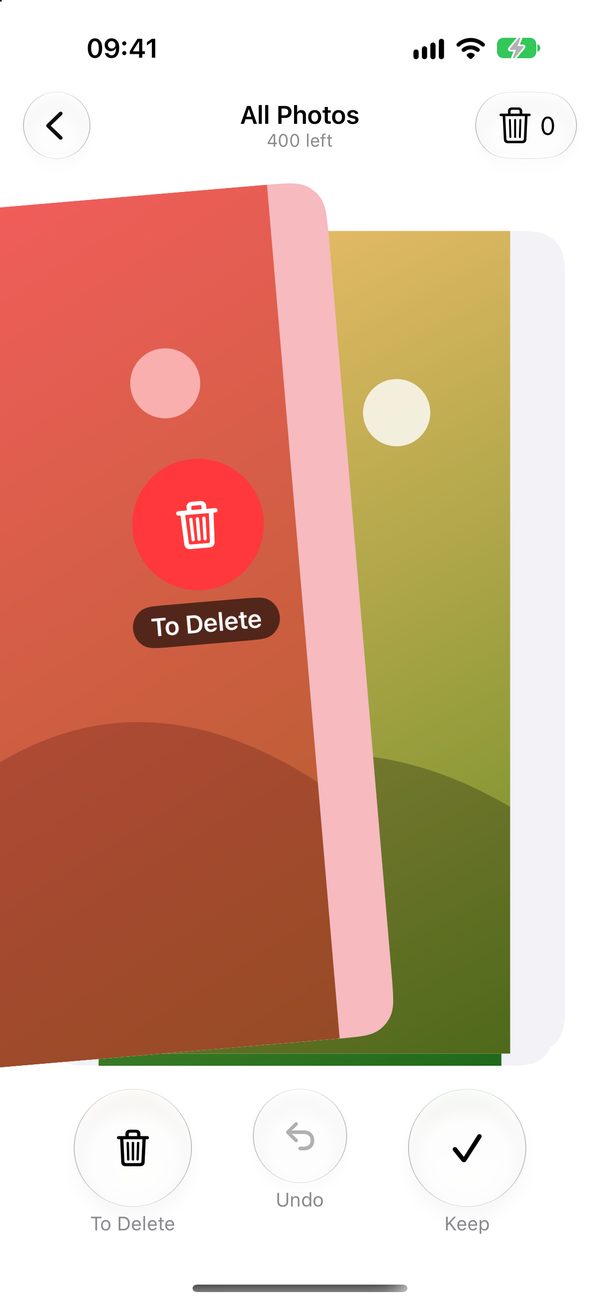
Swipe left to delete 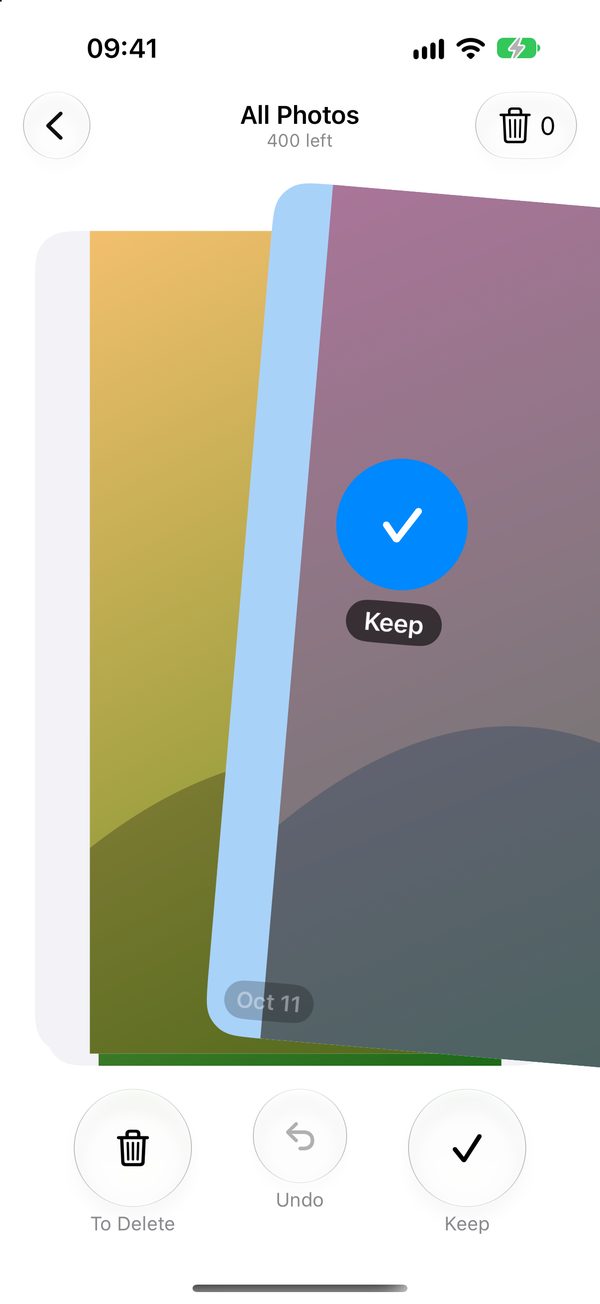
Swipe right to keep 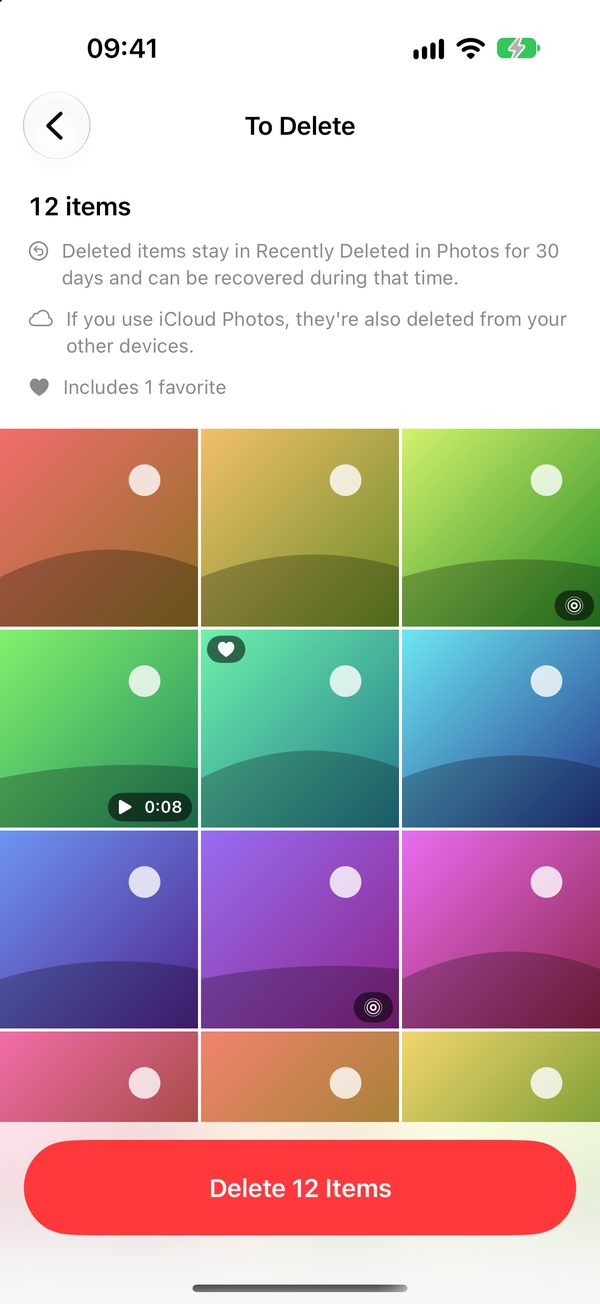
Review, then delete in one go 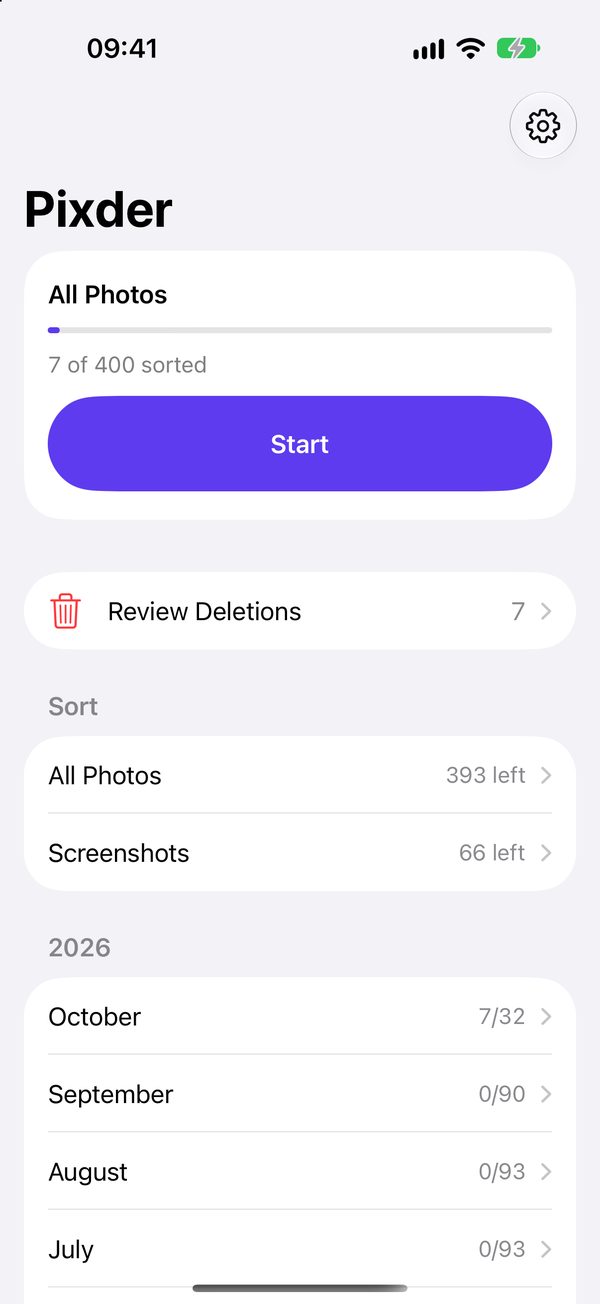
By month or screenshots
FAQ
Is there a faster way to clean up photos on iPhone?
In the Photos app you either open photos one by one or pick small thumbnails in Select mode. Pixder shows one photo at a time, full size. Swipe left to mark it for deletion or right to keep it. When you're done, review the photos marked for deletion and delete them all at once.
Does swiping left delete the photo right away?
No. Nothing is deleted while you swipe. Photos you swipe left are collected for review. They're deleted only after you tap Delete on the review screen and confirm in the iOS dialog. Swiped the wrong way? Tap Undo, or remove the photo from the list on the review screen.
Can I recover photos I deleted?
Yes. Photos deleted with Pixder move to Recently Deleted in the Photos app and stay there for 30 days, so you can recover them in Photos during that time. If you use iCloud Photos, they're deleted from and recovered on all your devices.
I deleted photos but my storage didn't go up.
Deleted photos stay in Recently Deleted for 30 days and still take up space during that time. To free space right away, empty Recently Deleted in the Photos app. Pixder can't empty that album for you.
Can I sort one month at a time, or just screenshots?
Yes. On the home screen, choose All Photos (newest first), a month, or Screenshots. Each month shows how many photos you've sorted, and a photo you keep won't show up again anywhere else.
If I close the app, do I have to start over?
No. Every keep or delete choice is saved on your device as you swipe, and Pixder opens where you left off.
Does it work with videos and Live Photos?
Yes. Videos show their first frame and length, and Live Photos and favorites are labeled. Deleting a Live Photo deletes both the photo and its video.
Is Pixder free? Are my photos uploaded?
It's free, with no ads, no sign-up and no daily limits. Your photos are read on your device only to show them and are never sent anywhere. To improve the app, we collect only anonymous error reports and usage statistics, and we don't use the advertising identifier (IDFA). See the Privacy Policy.
A few photos today, a tidy library tomorrow
One hand, a spare minute, a few swipes. Pixder is coming soon to the App Store, free.
Coming soon to the App Store